
Make the Recording View Fit Your Workflow
The main window can emphasize the information you use most. You can show speaker statistics, calendar context, and transcription actions when they are useful, then hide them when you want more room to read.
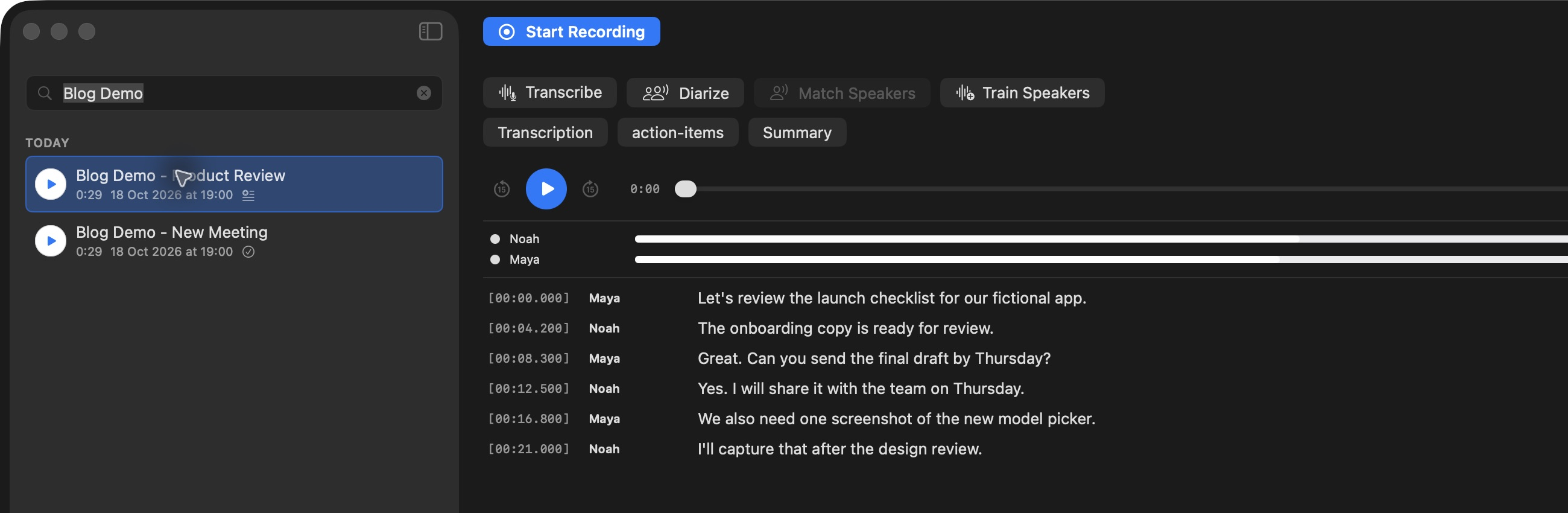
The default layout places the recording list beside the selected transcript.
Open the View menu for Speakers, Calendar Details, Transcription Actions, and Toggle Sidebar. Hiding a section changes the workspace, not the underlying recording or transcript. Drag the sidebar divider to give titles or transcript lines more room. When you listen back, Auto-scroll during playback in Preferences → Transcription can keep the active line visible.
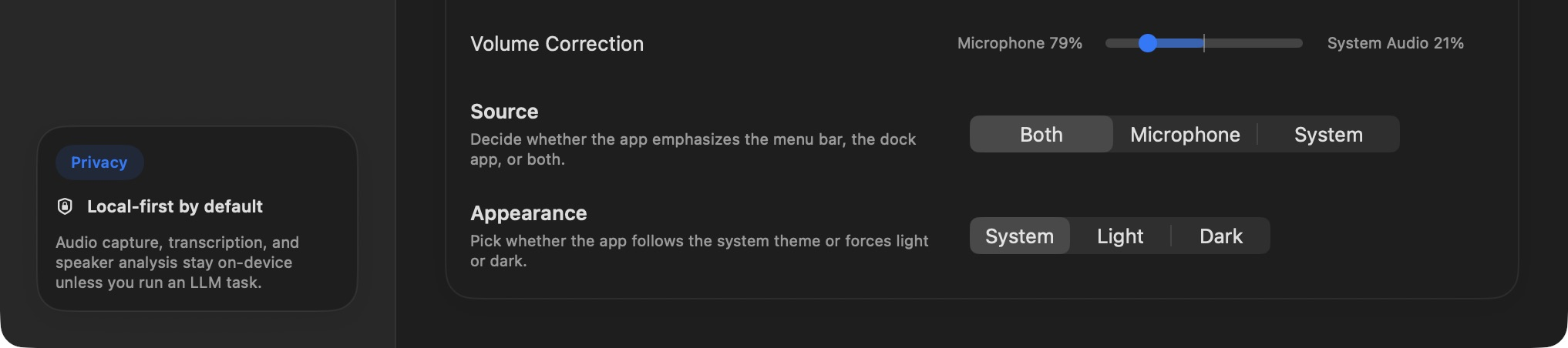
Appearance can follow the system theme or use a light or dark setting.
Choose System, Light, or Dark in Preferences → General → Appearance. A small window may be easier with the sidebar hidden; a review session may benefit from keeping both the sidebar and speaker statistics visible. Try one View-menu toggle at a time so you can see which part of the recording view it controls.