
Set Up Tironian Notes in Five Steps
The first-run wizard gets the essentials in place before your first meeting. It walks through a welcome screen, a local transcription model, an output folder, calendar access and selection, and a default transcription language.
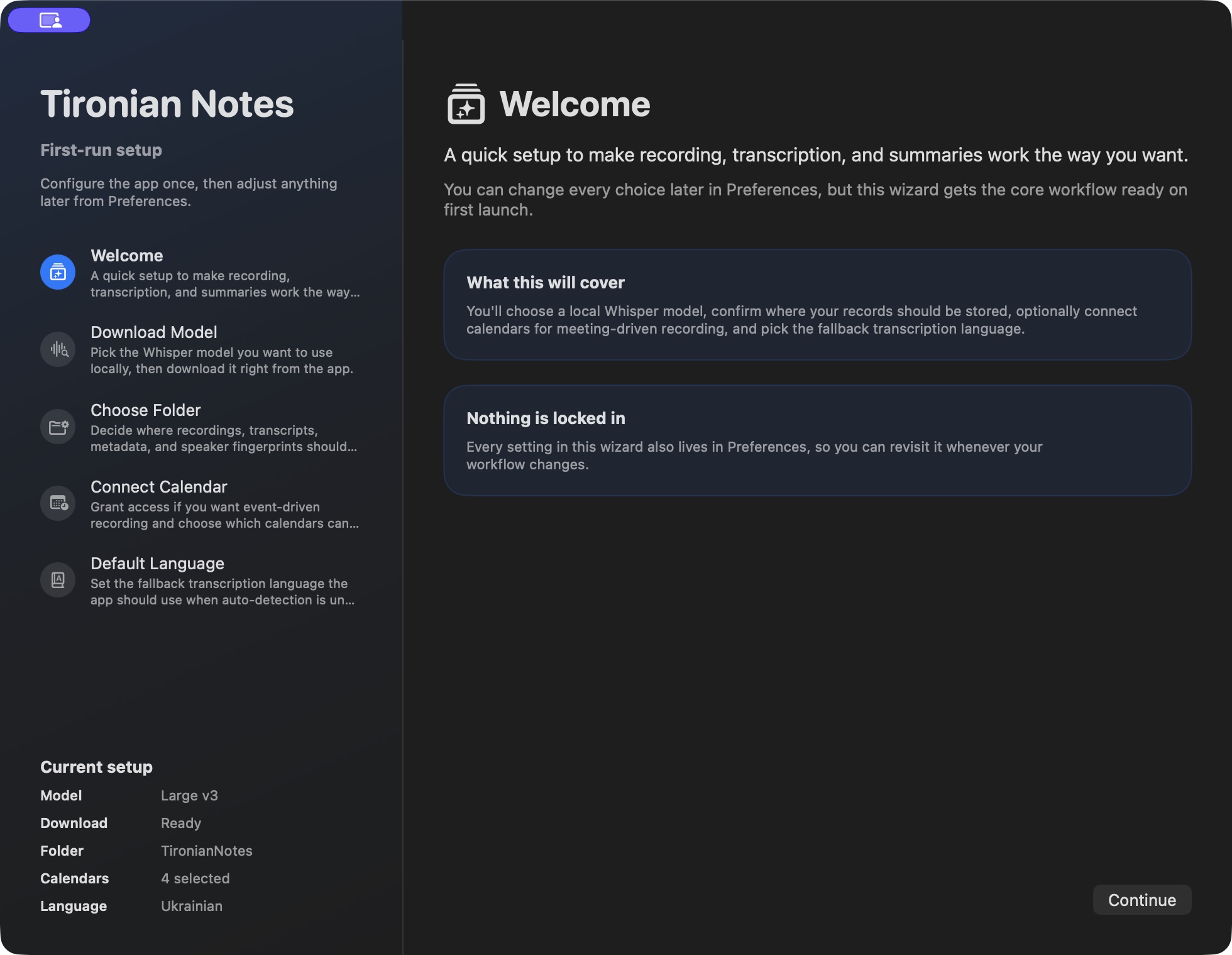
The welcome screen explains the setup path before any meeting is recorded.
Start by downloading a transcription model you can run on your Mac. The wizard then asks where the audio and transcript files should go. Choose a folder you can find later and include in your backups. Calendar access is useful for meeting automation; select the calendars you actually want scanned. Finally, set the default language used when Whisper's automatic detection is uncertain.
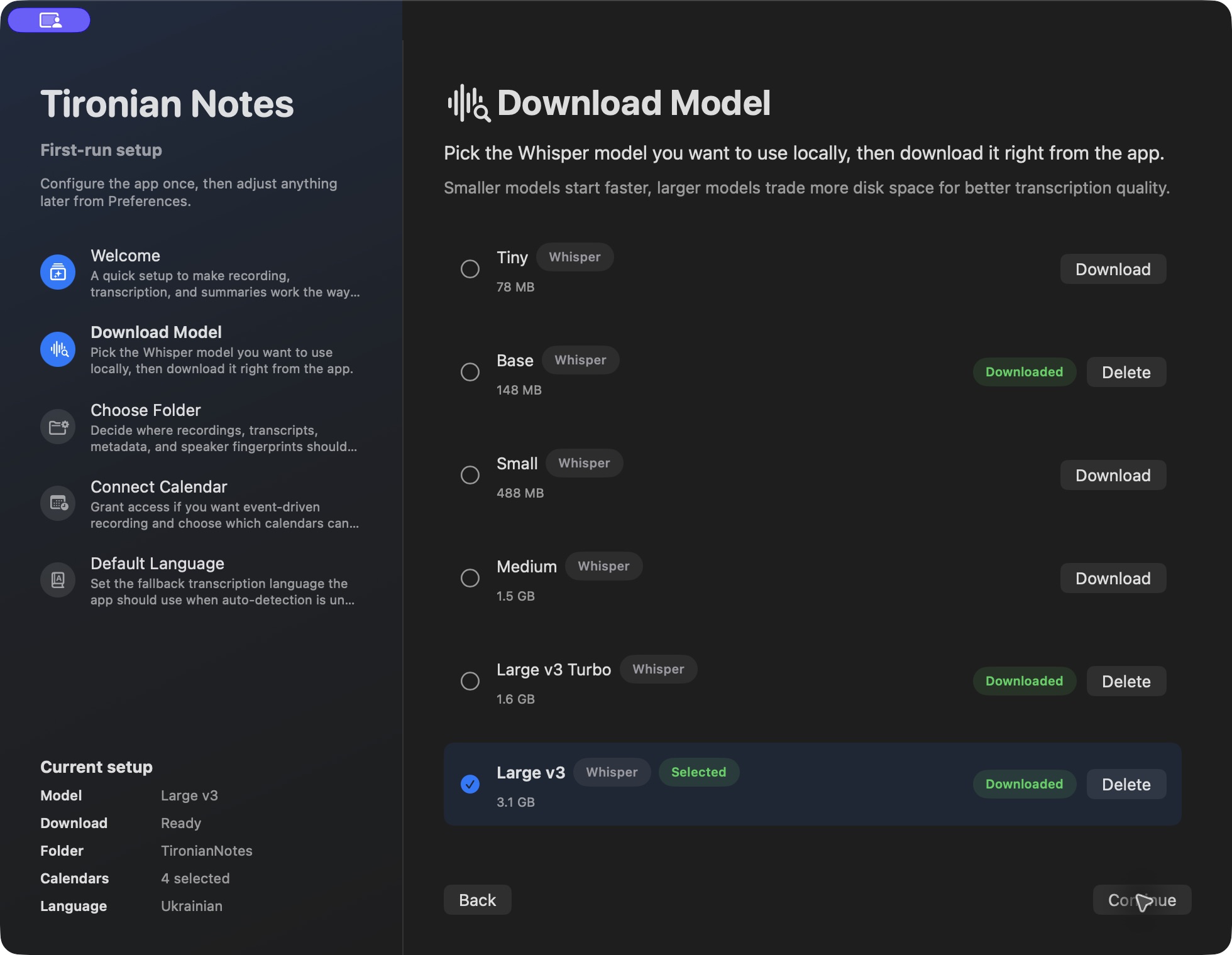
The model step prepares on-device transcription. You can change models later.
Calendar automation and LLM notes are optional choices, so you can start with a manual recording and add them after you understand the basics. Preferences keeps these settings editable after the wizard closes. If you want to revisit the guided flow, choose Run Onboarding Again from the setup card in Preferences.
Make a short fictional recording as your final setup check. Next, use the app's inline setup tips for anything you skipped.