
See What’s Processing Without Losing Your Place
Transcription, speaker analysis, and AI notes can take time. Tironian Notes queues heavy work and keeps the main window usable while it processes a recording.
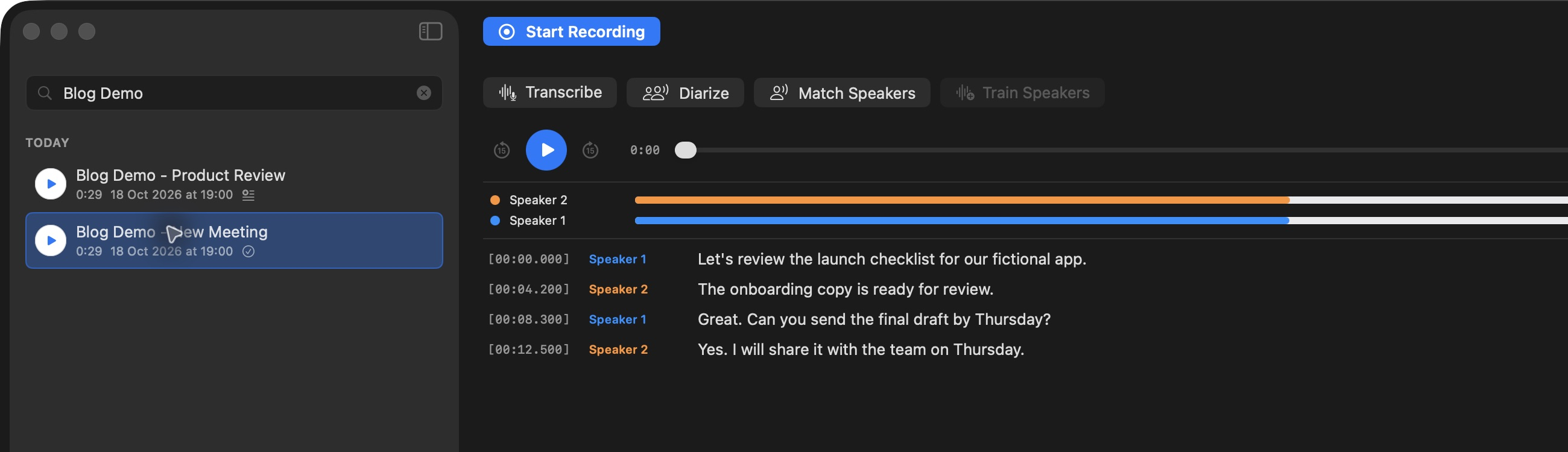
The processing actions stay attached to the selected recording, so you can see which stage is available.
After you start an operation, look for the status pill in the main window header. Open it to see active, queued, or attention-needed items. Transcription, speaker operations, and LLM tasks share a coordinator for heavy work, so two demanding jobs do not run at once. A later job may wait even though it has already been accepted into the queue.
Progress messages are consolidated so repeated updates do not flood the window. An active task can show elapsed time or a progress measure when one is available; errors call for attention. When an operation finishes, its result appears in the recording view: a transcript, revised speaker labels, or a task-named Markdown tab.
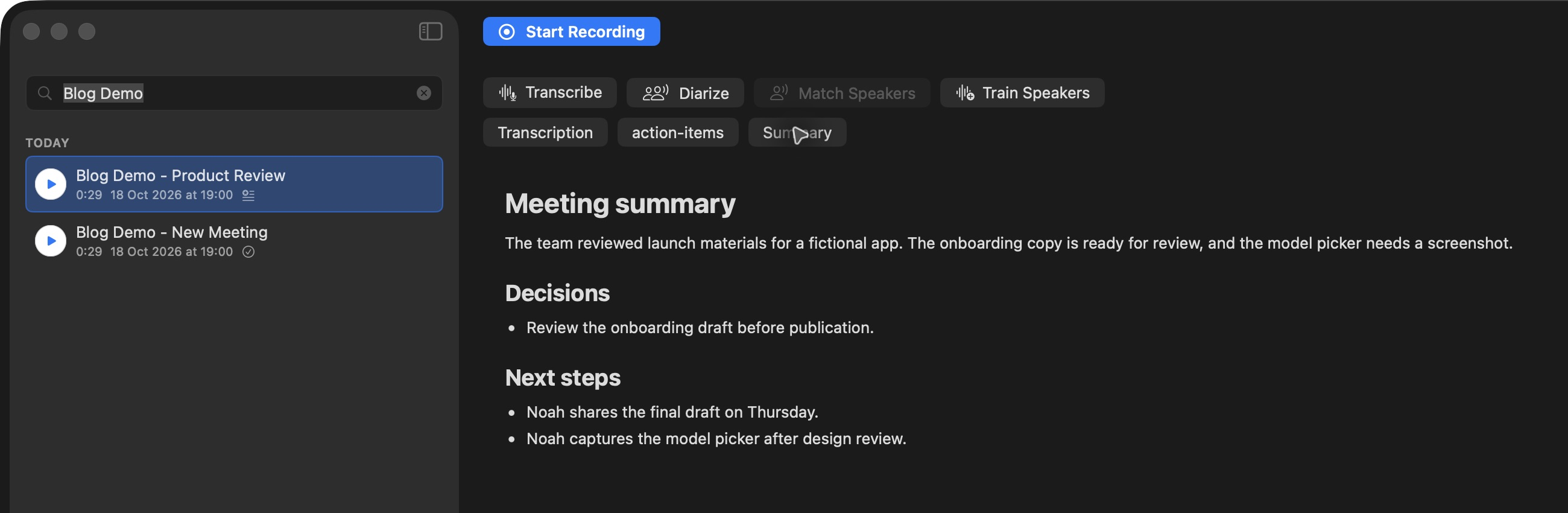
A completed result is available as a tab beside the transcript.
If a result has not appeared yet, check the status pill before starting the same operation again. Next, walk through the first-run setup.