
Know Where Your Recordings and Transcripts Live
Tironian Notes saves the files you work with in an output folder you choose. That means you can inspect a recording in Finder, back it up, or use its transcript with another tool.

Choose the output directory in Preferences → General. The folder path is hidden in this illustration for privacy.
Each recording has a .m4a audio file. After transcription, a .txt sidecar with the same file base stores timestamped text. Optional LLM tasks add Markdown sidecars with task-based suffixes, such as <base>.summary.md. The display name in the app can differ from the file base, so open a recording's context menu and choose Open in Finder to see the actual files.
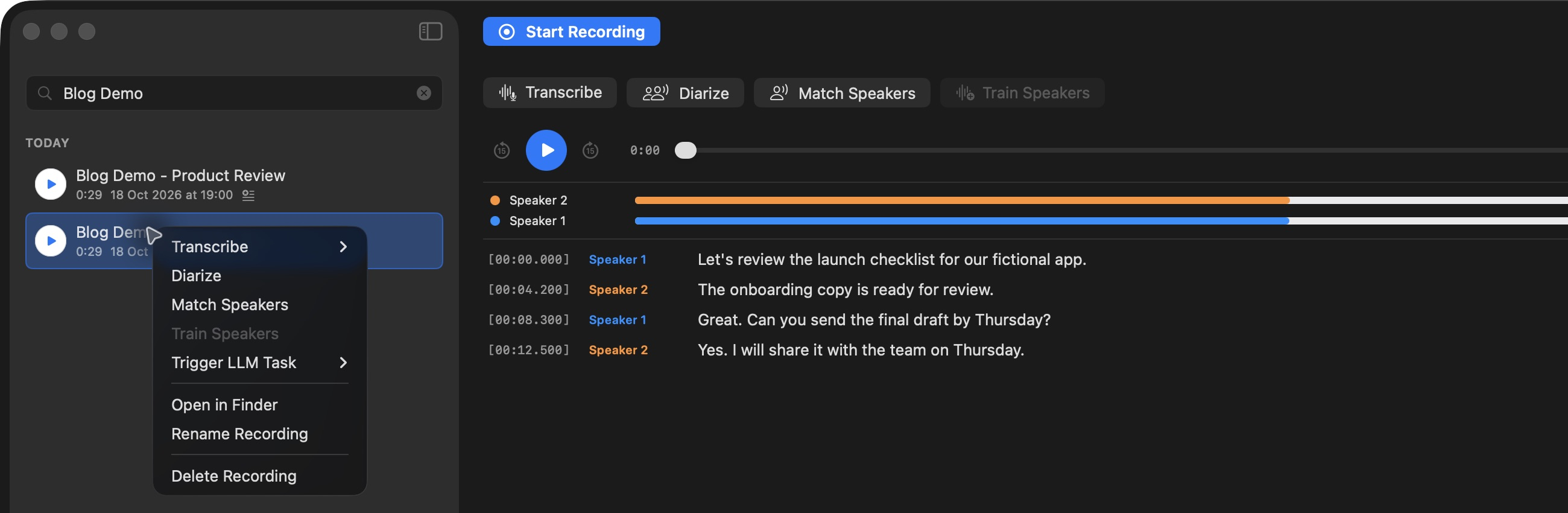
The Finder action opens the selected recording's files.
The chosen folder contains the user-facing audio and sidecars. App metadata and speaker fingerprint storage are managed separately by Tironian Notes in its application support data. Move or rename related files carefully when working outside the app; the list is built around the recordings and their companion names.
Choose a folder you already back up, then open one fictional test recording in Finder and verify that its audio and transcript are both present. Next, see how background work appears in the app.