
Find the Right Meeting Again
The recording list becomes more useful as it grows. Tironian Notes groups recordings by day, shows processing status on each row, and offers search so you can narrow the list without hunting through filenames.
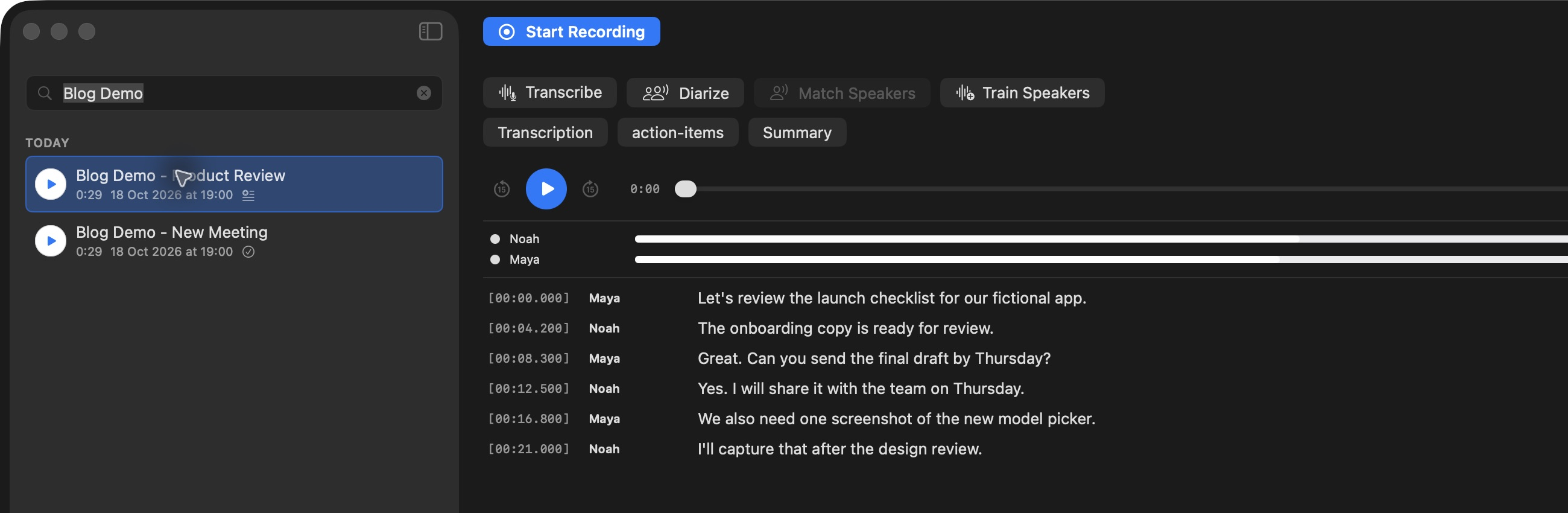
Typing part of a recording name filters the sidebar; the selected result opens beside it.
Use the search field at the top of the sidebar to look for a recording name or linked calendar details such as an attendee or note. The day headings help when you remember when a meeting happened but not its exact title. Row indicators show whether a transcript is available, so you can go straight to text when it exists.
Right-click a recording for more actions: Rename Recording to give it a useful title, Open in Finder to inspect its files, or run available transcription, speaker, and LLM tasks. The menu only enables an operation when the recording has what it needs—for example, speaker matching requires diarized labels.
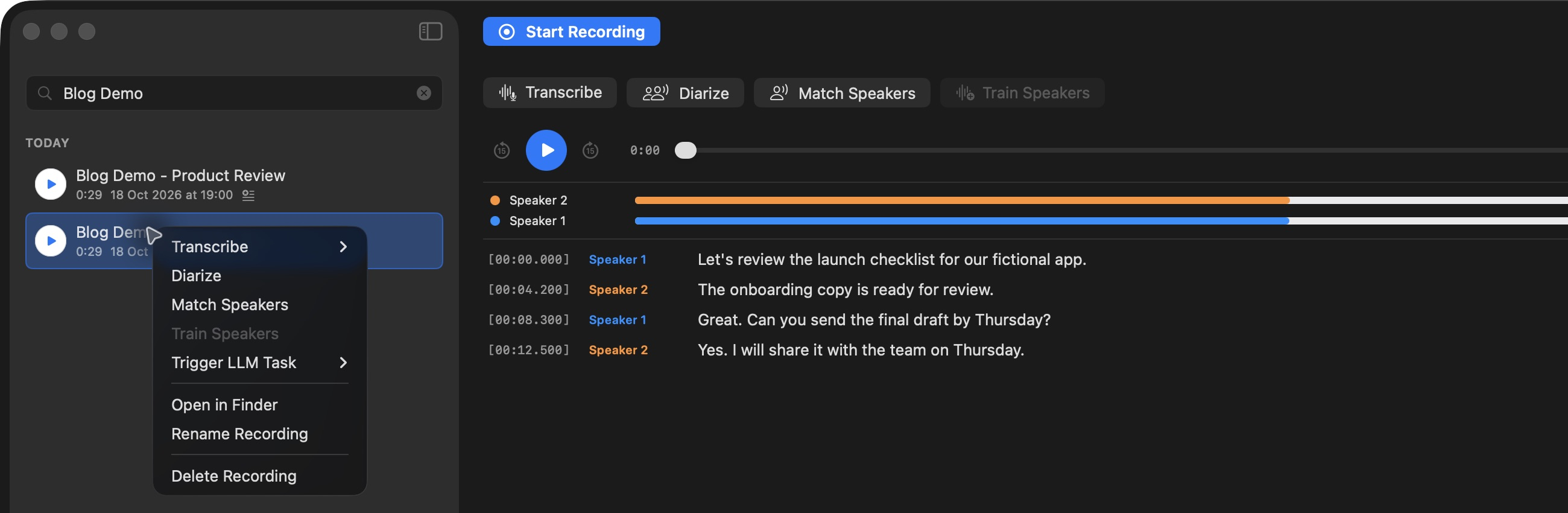
The context menu is also a quick route to the recording's companion files.
Give recordings descriptive names soon after a meeting while the context is fresh. Next, see exactly where their files live.