
Balance Your Microphone and System Audio
When you record Both sources, your microphone and the Mac's system audio are mixed into one file. A balance that works for one headset or call app may leave one side much quieter than the other. Volume Correction gives you a way to adjust that mix before recording.
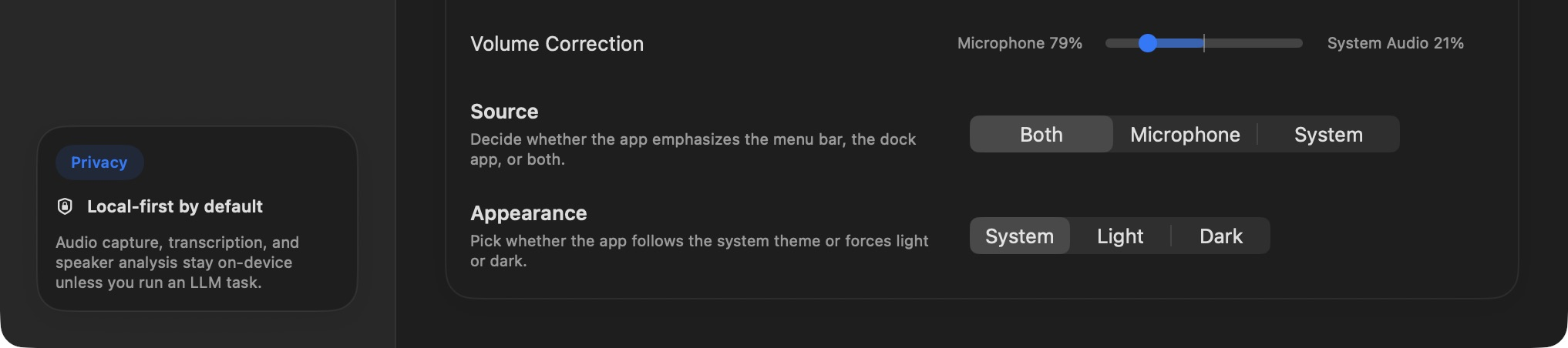
The pictured mix favors the microphone. Your own starting position may be different.
Go to Preferences → General, choose Both, and find Volume Correction. Move toward Microphone when your voice is too quiet relative to the call. Move toward System Audio when other participants are too quiet. A middle position gives the sources a balanced share. At the extremes, the mix can effectively favor only one source, so avoid moving there without a test.
Make a short recording with normal speaking volume on both sides, listen back, and adjust in small steps. The slider changes the mix for future recordings; it is not a repair tool for audio already saved. If you choose Microphone or System as the sole source, start by checking that source selection instead of trying to balance a second channel.