
Keep Your Speaker Library Organized
Named transcript lines are useful on their own. The Speakers window lets Tironian Notes also use those names as a library of familiar voices for future matching.
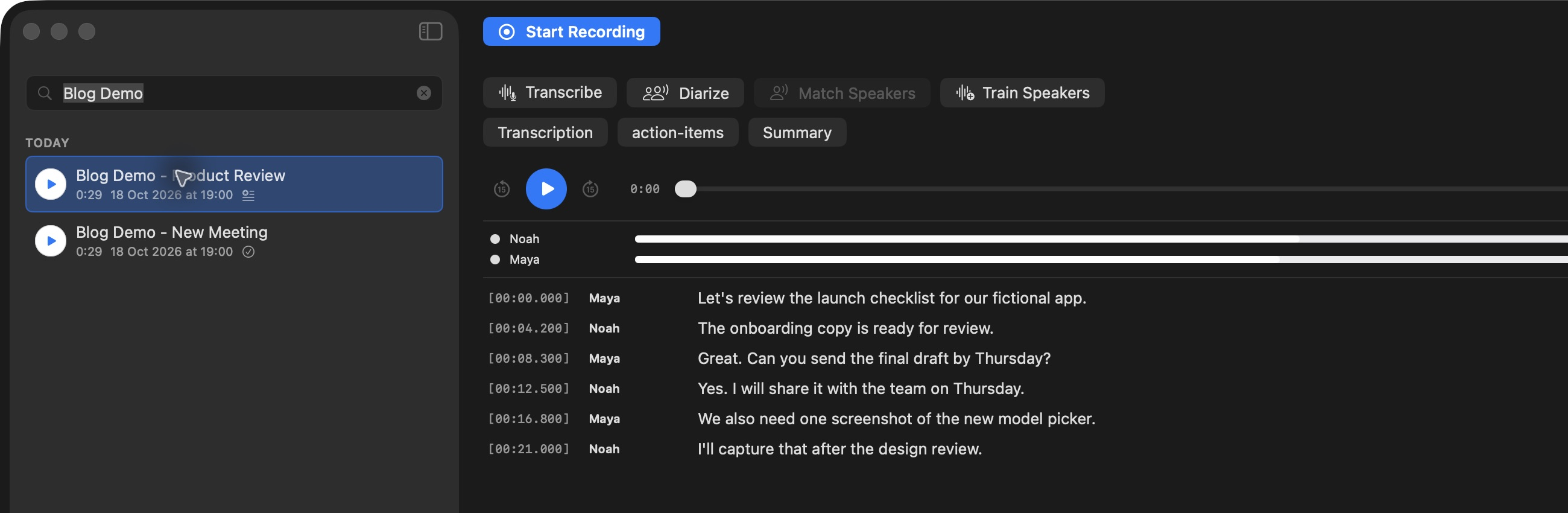
Open Speakers from the main window after checking the names in your transcripts.
In the Speakers window, you can inspect known speakers, change a person's color, rename a library entry, or remove one. The color mapping is global by speaker name, so the same person keeps the same visual cue in different recordings. Re-train All Speakers rebuilds voice fingerprints from named transcripts in the output directory and shows the last training date and progress.
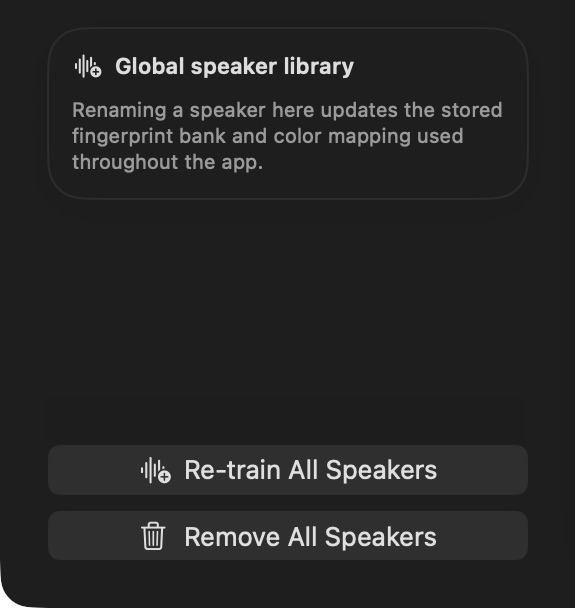
The Speakers window provides the library-wide retraining action. Private speaker names are outside this crop.
For the cleanest library, first correct generic labels in several representative recordings, then retrain across all of them. Training from a single recording currently replaces the saved fingerprint set, so Re-train All Speakers is the safer choice when you maintain a library spanning multiple meetings. A future Match Speakers action uses those fingerprints and leaves uncertain voices generic.
Removing a speaker entry removes its color mapping; it does not erase names already written into transcript files. If you want the fingerprint set to reflect changes across recordings, review the named transcripts and run Re-train All Speakers. Next, build a custom task for action items.