
Correct a Speaker Name Once—or Everywhere in the Transcript
Speaker diarization tells voices apart, but it starts with generic labels. You can replace Speaker 1 with a person's name on one line or across the transcript, depending on what needs fixing.

Click a colored speaker tag to open the rename control.
Enter the name in the Rename Speaker sheet. Leave Apply All off to fix just the selected line. Turn it on when every instance of that generic label is the same person. Opening the sheet from the speaker statistics bar defaults to a transcript-wide change. The sheet can also suggest names already used in this transcript, so you do not have to type one repeatedly.
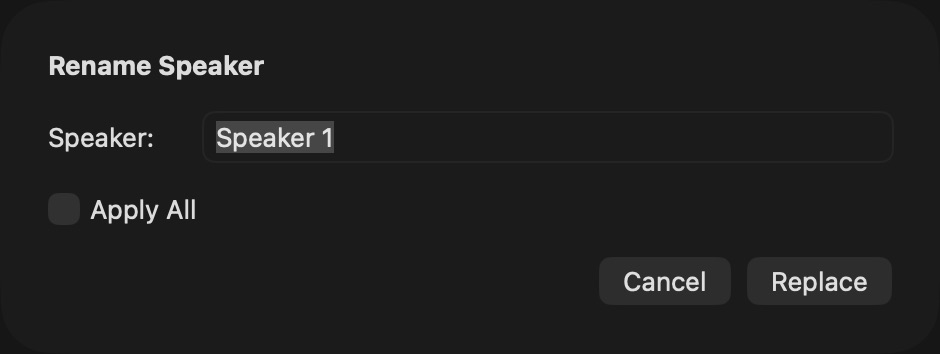
Check the scope before you press Replace.
If the previous line has the right speaker, ⌘-click the next line's speaker tag to copy that label. Color follows a name across the app, making a corrected transcript easier to scan. For a long transcript, review several lines before using Apply All: diarization may occasionally have given one generic label to more than one voice.
Once the labels are reliable, organize and retrain your speaker library.