
Keep the Meeting Details with the Recording
“What was this file for?” is a common problem when several calls happen on the same day. When Tironian Notes links a recording to a calendar event, the meeting context helps answer it later.
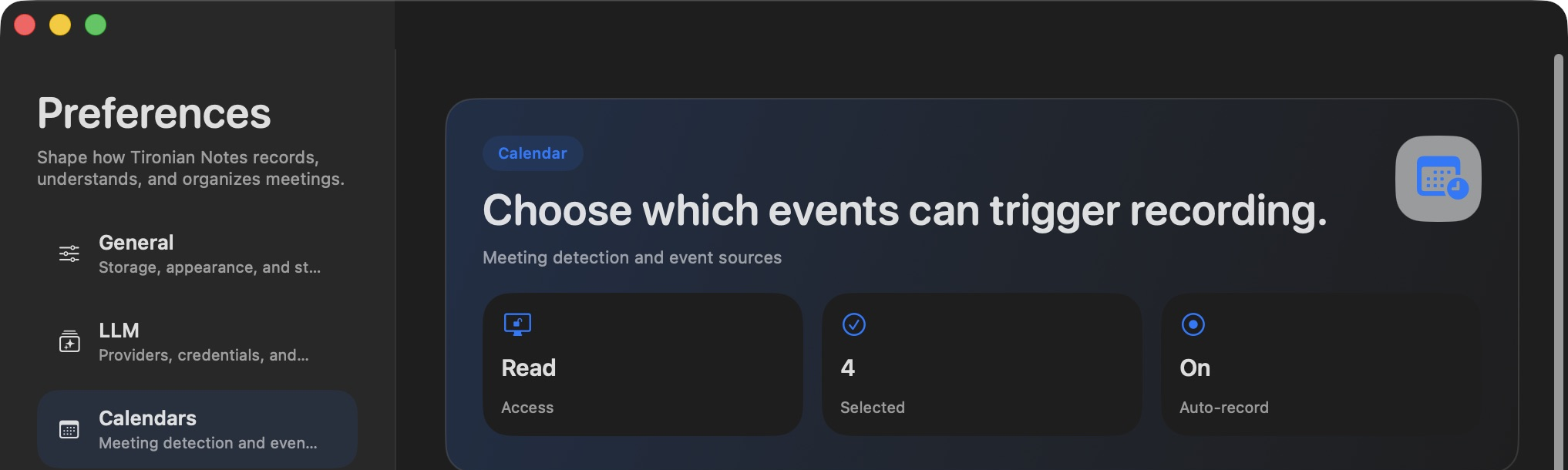
The app reads events from the calendars you select; calendar selection controls which events can be linked.
An event-linked recording can carry the event title and time into the recording list. Open the recording and reveal Calendar Details to see the associated title, time range, attendees, and notes; the meeting URL is also available as part of the event context. This is particularly useful when a generic recording name would otherwise look like every other call.
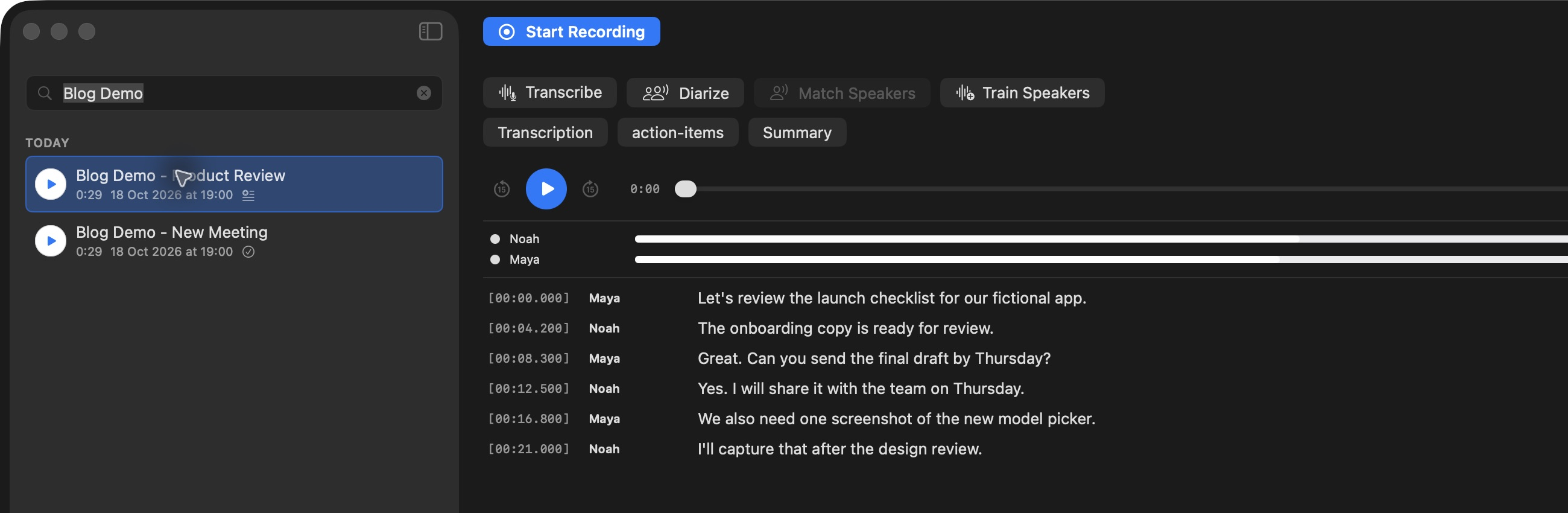
The sidebar is where you return to a recording; event-linked items use their calendar context to make identification easier.
Calendar context requires permission, a selected calendar, and an event the app can associate with the recording. A manually started recording without such a link will not gain event details after the fact merely because it happened at roughly the same time. To keep the view focused, use View → Calendar Details to show or hide that section.
Next time you test calendar recording, confirm the event title before you start taking notes. Next, correct the speaker labels in that transcript.