
See Your Next Meeting Without Opening the App
When the main window is out of the way, the menu bar item can still show what is coming up. Choose a compact display or show the next meeting's time and title, then use the menu when you need the full event list.
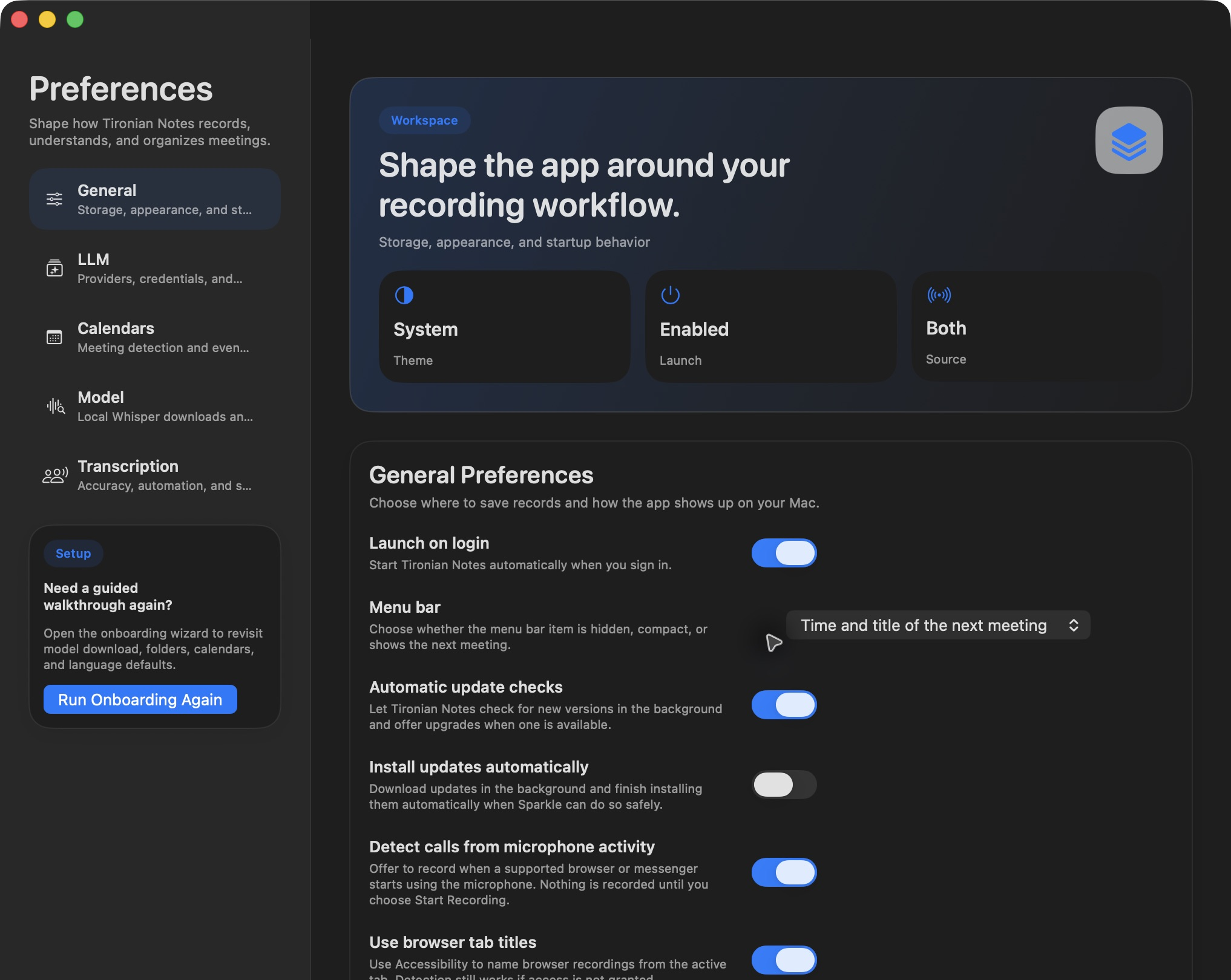
The menu bar picker sits in Preferences → General alongside startup and recording controls.
Open Preferences → General → Menu bar and select the display style you prefer. The app can keep the item hidden or compact, show the next meeting time, or show its time and title. The next-event display depends on calendar access and the calendars you selected under Preferences → Calendars. During an active recording, the menu bar switches to the recording timer so you can see that capture is running.
Use the full title style when several meetings are close together and a time alone is ambiguous. Choose compact mode when screen space matters more. The menu bar item also gives you a quick path back to today's meetings and the recording controls.
Try each mode while a fictional calendar event is upcoming and keep the one you can read at a glance. Next, see how meeting context stays attached to a recording.