
Jump Straight to the Moment Someone Said It
The fastest way to check a quote is to hear the moment it came from. In Tironian Notes, the transcript and player share a timeline: click a timestamp to seek to that point in the recording.
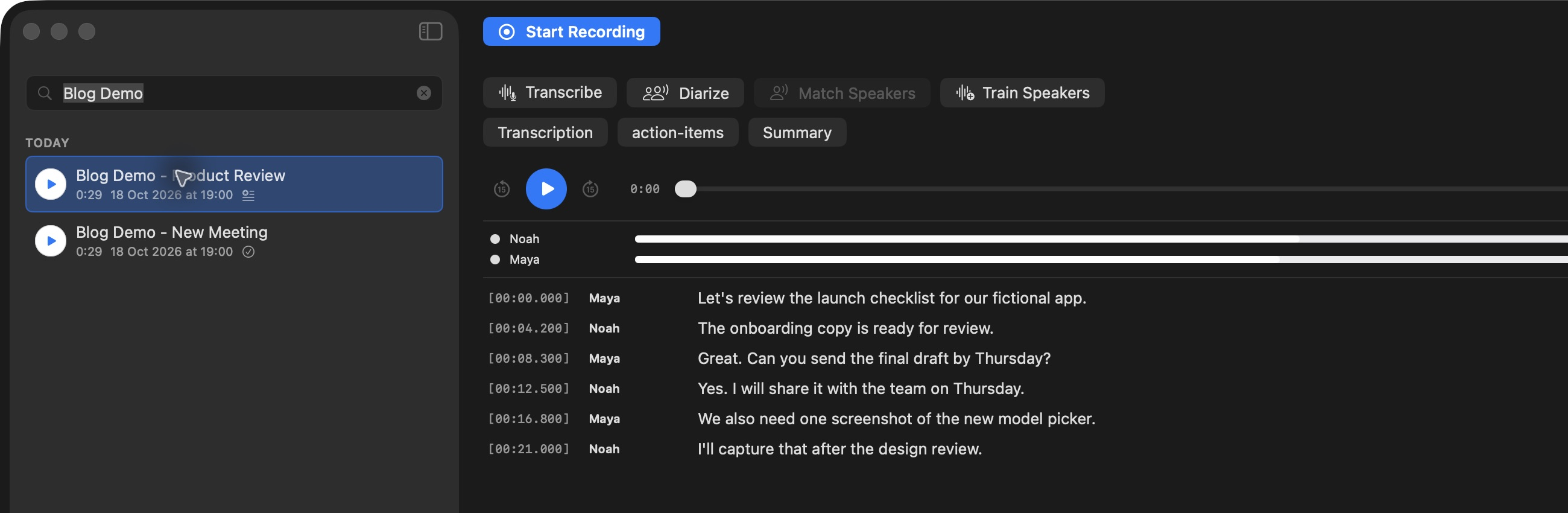
Timestamps sit beside each line, while the player offers a scrubber and a speed control.
Open a recording with a transcript, then click the timestamp beside a line. Playback moves to that segment. Use the Play button to listen, the 15-second skip controls to repeat nearby audio, and the 1× speed button to change playback speed. The active line is highlighted while the recording plays.
Long transcripts can follow the playhead automatically. Turn on Auto-scroll during playback in Preferences → Transcription when you want the active line to stay in view. Leave it off when you are scanning ahead and do not want the page to move underneath you.
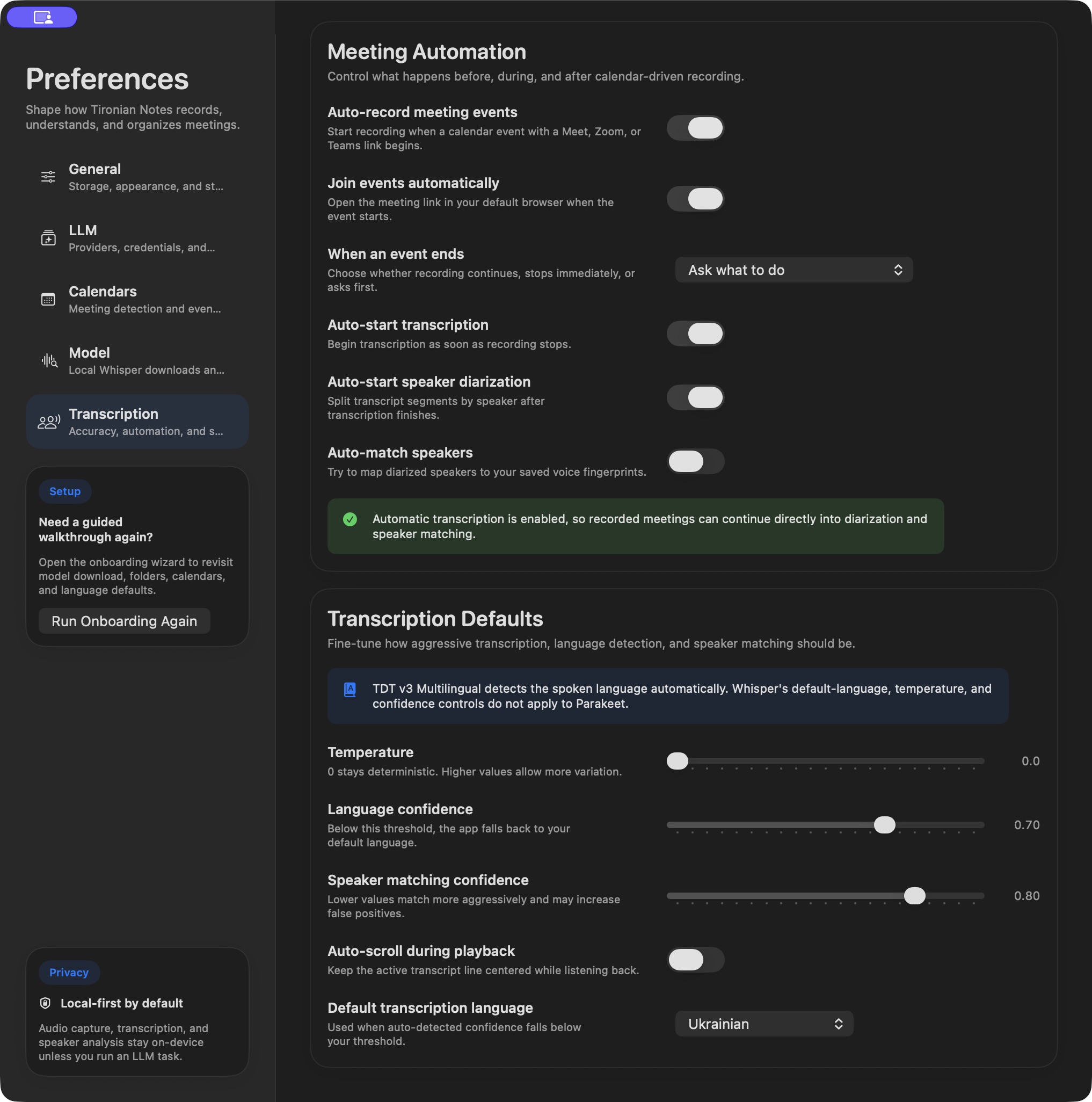
Auto-scroll is a playback preference; it does not change the saved transcript.
This is especially useful when a generated summary sounds too definite. Jump to the relevant line, listen to the surrounding discussion, and correct the note if the decision was only tentative. Next, make transcription and speaker processing run in sequence.