
See Who Said What in a Meeting
A plain transcript tells you what was said. Speaker diarization adds a useful second layer: it groups segments by distinct voices and marks them as Speaker 1, Speaker 2, and so on.
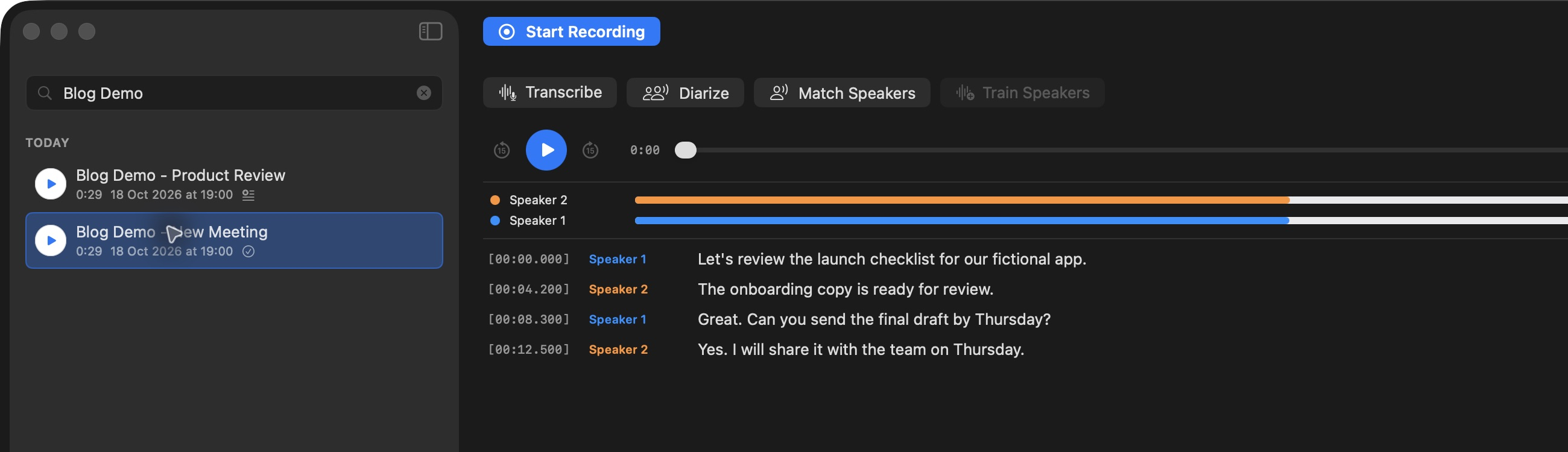
Colored labels and the speaker statistics bar make turn-taking easier to scan.
After transcribing a recording, click Diarize. Tironian Notes analyzes the audio locally and assigns generic labels to the transcript lines. The labels represent different voices; they do not identify people by name. This distinction matters when two people sound similar or a short segment gives the app little evidence.
You can turn on Auto-start speaker diarization in Preferences → Transcription to run it after automatic transcription. If you prefer to check the transcript first, leave that switch off and use Diarize on individual recordings. Running diarization again replaces the current speaker assignments, so review edits before repeating it.
For a practical check, find a few alternating lines and listen at their timestamps. Correct any mislabeled line before using the names for a summary or training a speaker library. Next, teach the app to recognize familiar voices.