
Let Your Calendar Start the Recording
If you regularly forget to press Record, calendar automation can start a meeting recording at the event time. It applies to events from selected calendars that contain a recognized meeting link, such as Meet, Zoom, or Teams.
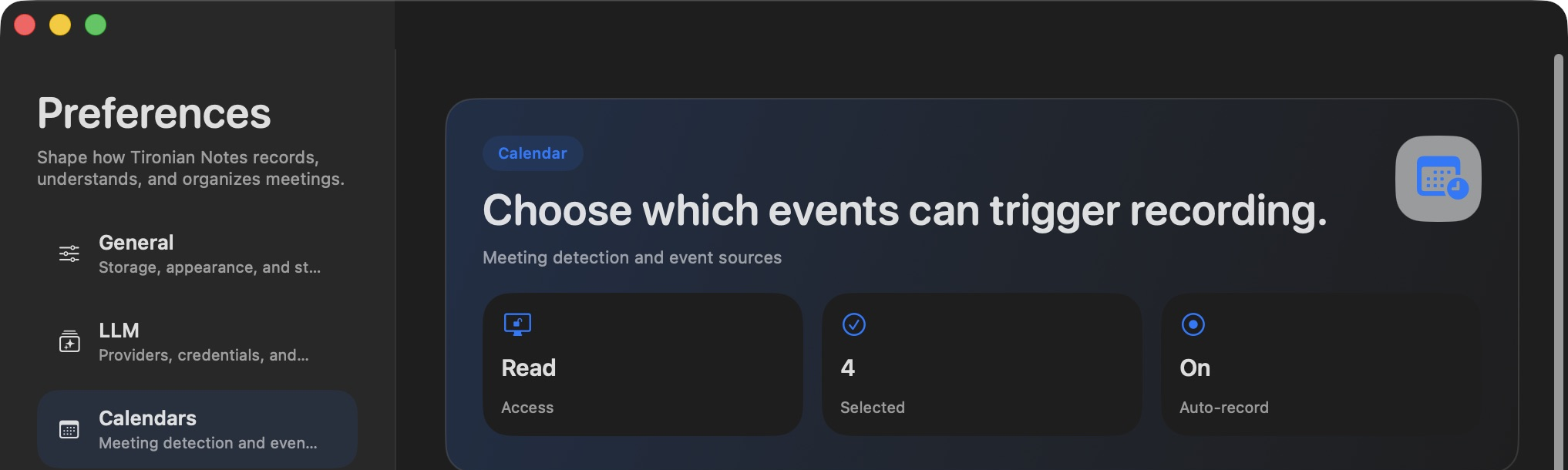
Calendar access and calendar selection determine which events Tironian Notes can consider.
First, open Preferences → Calendars, grant the requested access, and select the calendars you want scanned. Then open Preferences → Transcription and check Auto-record meeting events. You can turn this switch off; unrelated events and events without a recognized meeting link are not treated as meetings to record.
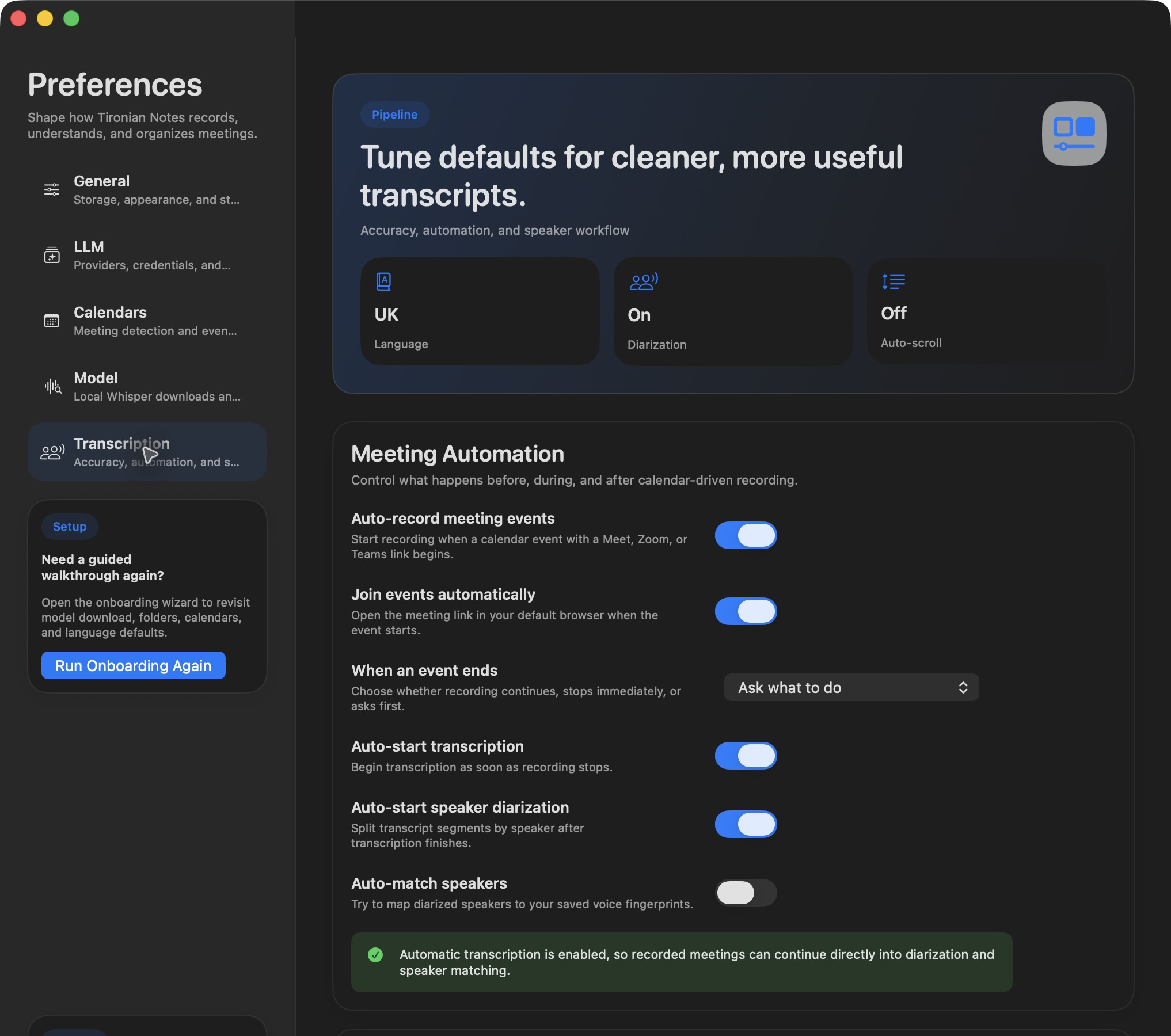
Meeting Automation also controls what happens when the calendar event ends.
When an eligible event begins, the app creates a recording associated with that event if auto-record is enabled and no other recording is active. Its title and calendar context make the result easier to find later. At the scheduled end, Tironian Notes follows When an event ends: keep recording, stop automatically, or ask you what to do. Choose the behavior that fits meetings that often run long.
Make a fictional test event with a meeting link and verify it appears in the app before relying on automation. Next, turn its transcript into a summary.