
Turn a Recording into a Private, Timestamped Transcript
You do not have to replay an entire meeting to find one sentence. Tironian Notes transcribes a finished recording on your Mac and presents the words beside timestamps you can use for playback.
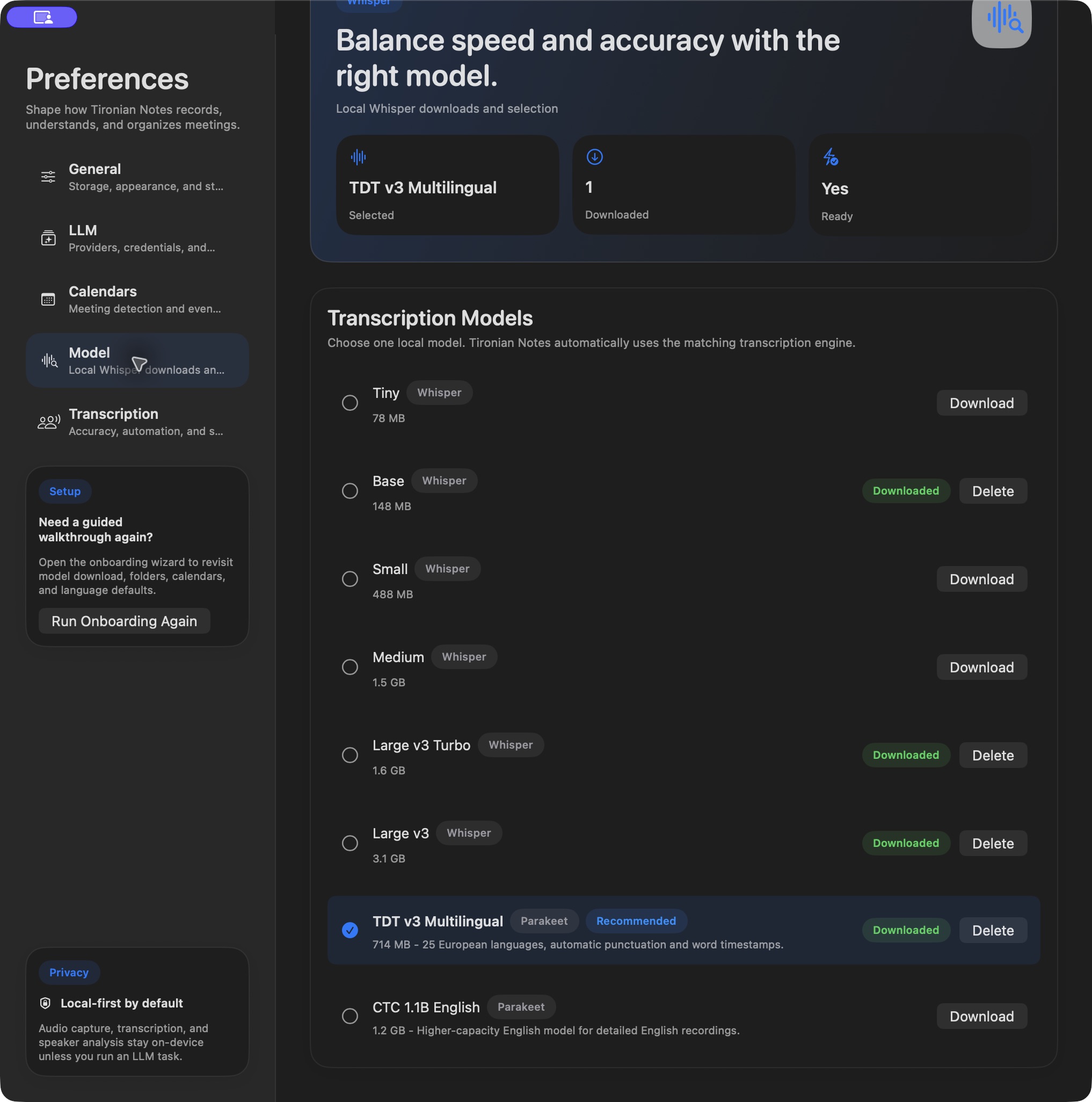
Download and select a transcription model in Preferences → Model before transcribing.
Open Preferences → Model and download a supported Whisper or Parakeet model. Select the model you want to use. In the main window, choose a finished recording and click Transcribe. You can also choose a downloaded model from the recording's context menu. When processing finishes, the Transcription view shows timestamped lines.
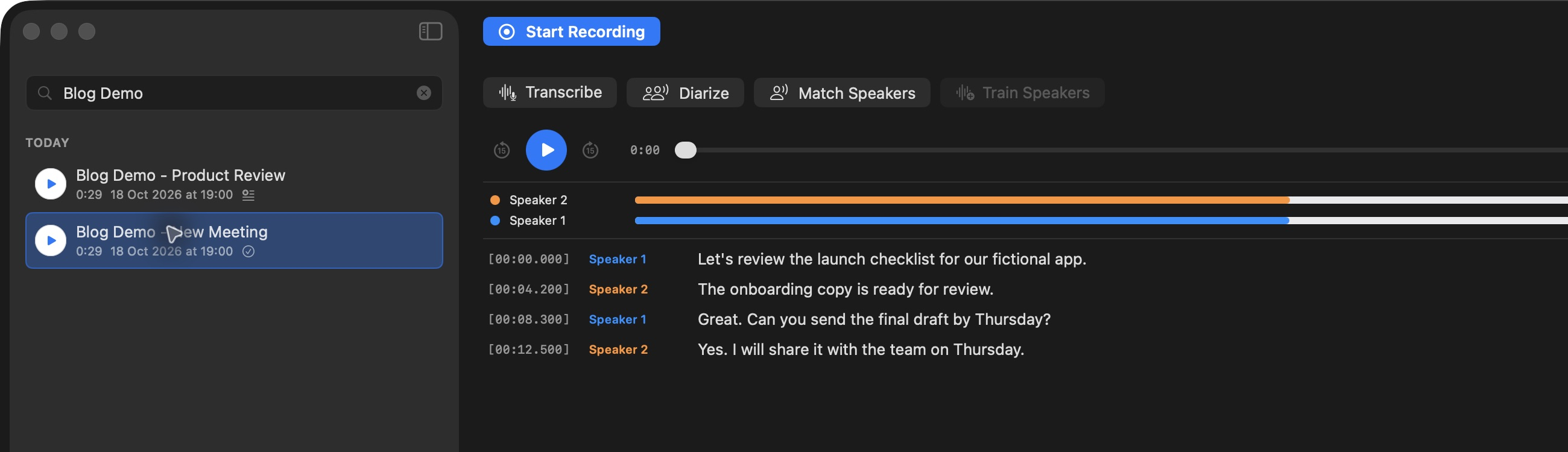
The transcript is tied to the recording; each timestamp gives you a way back to the audio.
Audio capture and transcription run locally. Optional AI notes are a separate step: a cloud LLM provider receives transcript text when you run a task with that provider. If you want the transcription itself to stay on-device, no cloud LLM task is needed.
For recurring meetings, Preferences → Transcription → Auto-start transcription can begin this step when recording stops. For a first try, transcribe one short recording manually and check names and technical terms against the audio. Next, connect meetings to your calendar.