
Capture Your Voice and the Call in One Recording
When a conversation happens through your Mac, useful notes need both sides of it. Tironian Notes can capture your microphone, system audio, or both into one recording. Choose the source before you start so the file contains the voices you need.
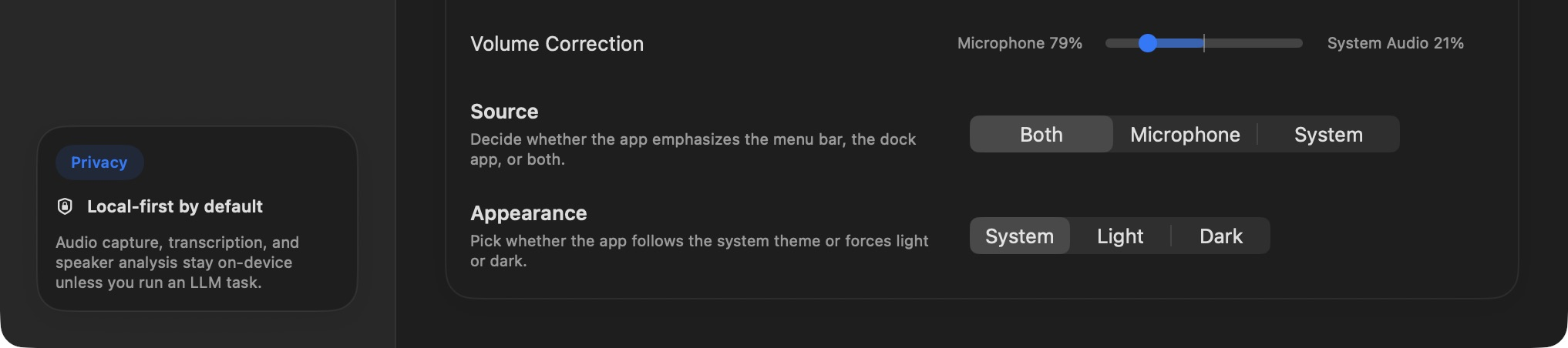
The Source control offers Both, Microphone, and System. Volume Correction adjusts the mix when both sources are captured.
Open Preferences → General and choose Both for a call where you speak into a microphone and hear other people through the Mac. Choose Microphone for an in-person conversation near your mic, or System when you need only the Mac's output. Then press Start Recording in the main window. Press the recording control again when the conversation is done; the finished recording appears in the sidebar.
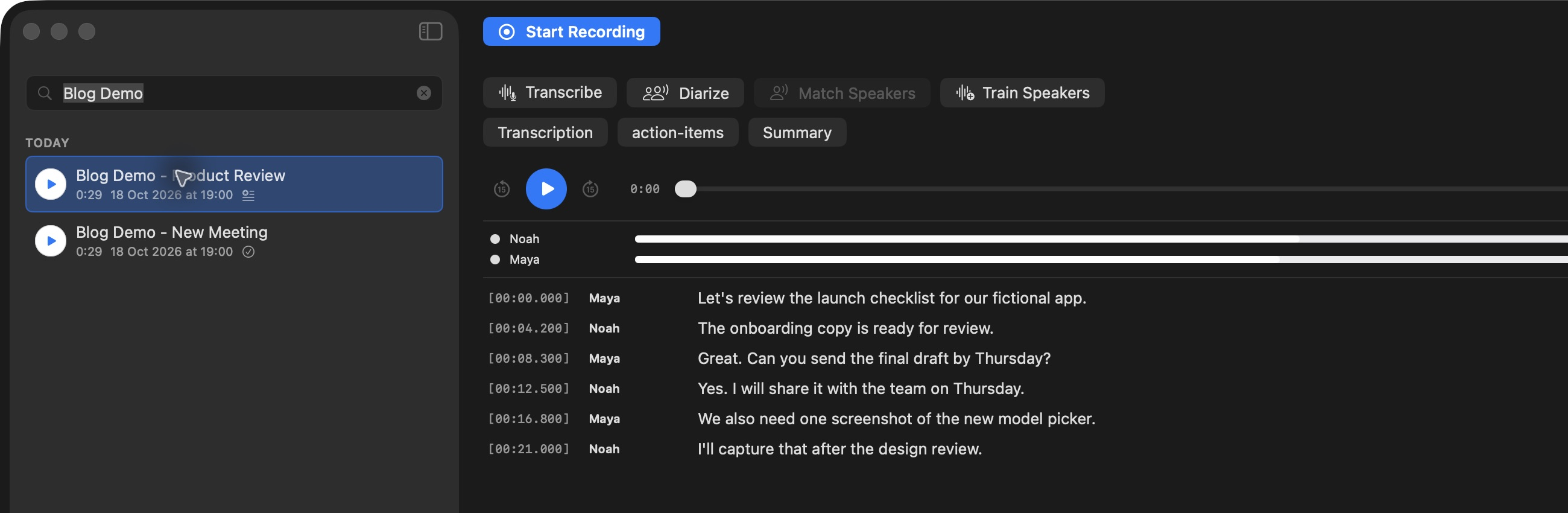
A finished recording appears in the sidebar, where you can play it or open its transcript.
Why adjust volume correction? A quiet microphone and loud call audio can make one person hard to hear. With Both selected, move the slider toward the quieter source to give it more weight. A centered mix is a sensible starting point. If you choose only one source, balancing two sources is unnecessary.
Try a short test call first, play the result, and adjust the source or mix before a meeting you need to keep. Next, turn the recording into a transcript.